We’ve all been there. You’re in the zone, the code is flowing, and your new AI-assisted editor is offering brilliant suggestions. Then, you hit
Ctrl+S.
Suddenly, your perfectly aligned layout explodes.
I recently ran into this exact battle while working with the Google Antigravity editor on a Django project. It’s a powerful tool, but like many AI-driven environments, it has strong opinions on how code should look. In this case, its obsession with line length turned a simple template update into a rendering nightmare.
Here is the story of how the auto-formatter broke my Django templates, and the "One Weird Trick" (using standard Django tags) that fixed it for good.
The Problem: The Exploding Layout
I was building a feature comparison card for a Real Estate platform. The design was simple: a list of amenities with icons and values (e.g., square footage, number of bedrooms, garage capacity).
In my text editor, the template code looked clean and correct. But when I loaded the page in the browser, the layout was shattered. Icons were misaligned, and in some edge cases, the template tags themselves were failing to render, appearing as raw text on the screen.
I suspected a CSS issue. I suspected a view context error. I suspected everything except the editor.
The Analysis: Aggressive Auto-Formatting
After an hour of print() debugging and inspecting elements, I finally looked at the source code after saving it in Antigravity.
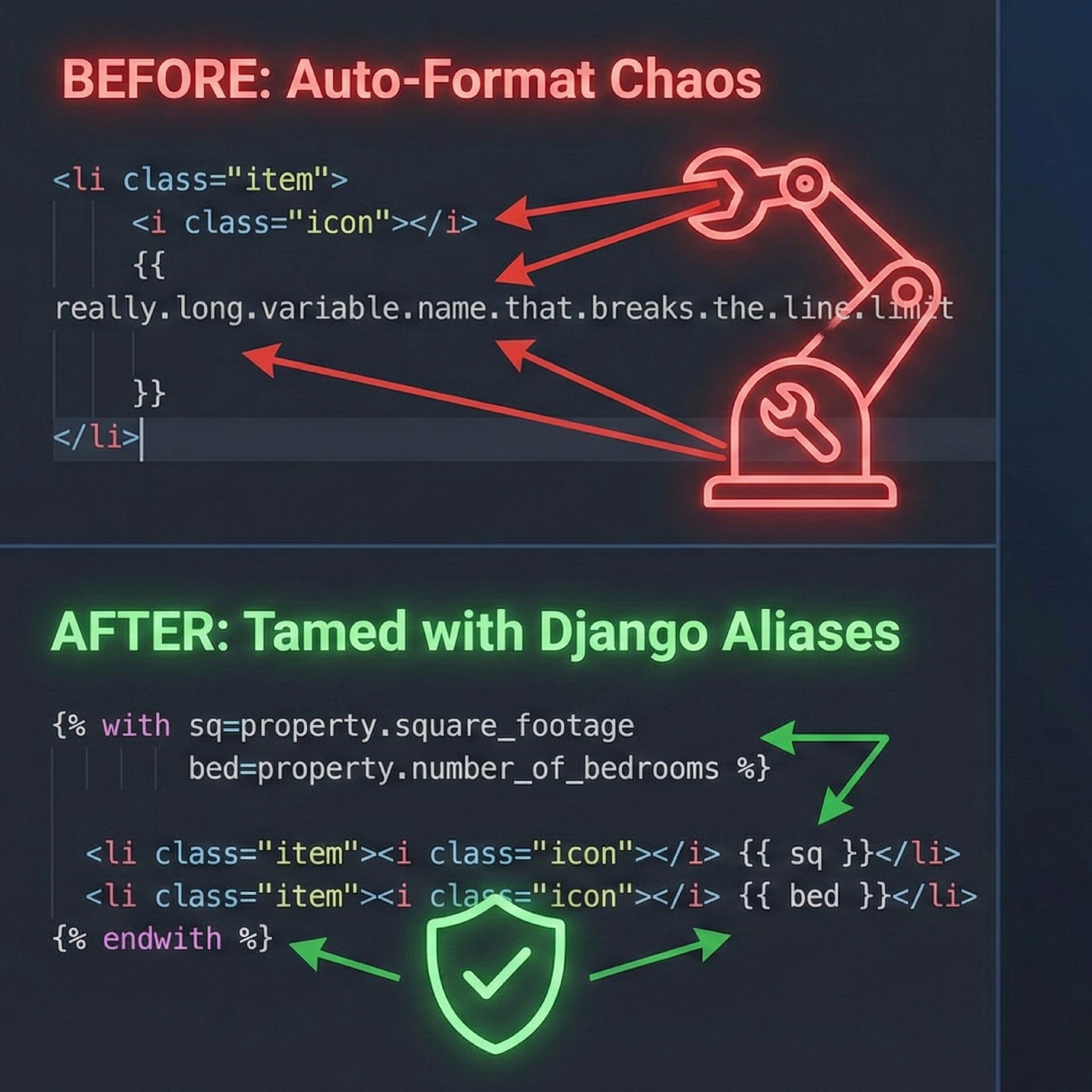
The editor’s auto-formatter was aggressively enforcing a strict line-length rule. It was taking my concise, single-line list items that contained multiple long variable lookups:
<li class="amenity-item"><i class="icon-bed"></i> {{ property.master_bedroom_count }} Bedrooms</li>And "fixing" them by rewriting the HTML into multi-line blocks to save horizontal space:
<li class="amenity-item">
    <i class="icon-bed"></i>
    {{ property.master_bedroom_count

    }}
    Bedrooms
</li>
While this is technically valid HTML, context is king. In this specific complex layout (which involved some fragile flexbox behavior and white-space sensitivity), the introduced newlines were being rendered as literal whitespace text nodes. This made the template tags to appear as raw text on the screen.
Every time I manually deleted the newlines to fix the layout, the editor would dutifully "fix" it back the moment I saved the file. It was a tug-of-war: me pulling for layout integrity, the machine pulling for PEP-8 style line limits.
The Solution: The Alias Pattern
I could have fought the machine. I could have dug into the deep configuration of the Antigravity editor, searching for the specific JSON flag to disable HTML line-wrapping for list items.
But global config changes are risky—they affect the whole team. Instead, I decided to change my code to play nice with the machine's rules.
The root cause was that the variable names (like property.master_bedroom_count) were pushing the line length over the limit. If the lines were shorter, the auto-formatter wouldn't feel the need to wrap them.
Enter the Django {% with %} tag.
By using {% with %} to alias these long, database-column-style variable names to short, single-letter variables, I reduced the line length significantly.
The Fix
Here is how we refactored the template. We wrapped the section in a with block, mapping the verbose variables to sq, bed, bath, and gar.
{% with sq=property.square_footage bed=property.number_of_bedrooms bath=property.number_of_bathrooms gar=property.garage_capacity %}

    <li class="mb-2"><i class="fas fa-ruler-combined me-2"></i> {{ sq }} Sq Ft</li>
    <li class="mb-2"><i class="fas fa-bed me-2"></i> {{ bed }} Beds</li>
    <li class="mb-2"><i class="fas fa-bath me-2"></i> {{ bath }} Baths</li>
    <li class="mb-2"><i class="fas fa-warehouse me-2"></i> {{ gar }} Car Garage</li>

{% endwith %}
Why This Works
Satisfies the Linter: The lines are now well under the character limit, so the Google Antigravity editor leaves them alone. No more unwanted newlines.
Improves Readability: While single-letter variables can sometimes be obscure, in the context of a small HTML block, they actually make the structure of the markup easier to scan. You focus on the HTML tags, not the verbose Python variable names.
Performance: Django’s with tag caches the variable lookup, which is a tiny (but nice) performance bonus if you are accessing a complex property multiple times.
Key Takeaway
When working with opinionated AI editors like Google Antigravity, your first instinct might be to fight the configuration settings. But often, the better solution is to refactor your code.
If an auto-formatter is struggling with your code, it might be a subtle hint that your code is too verbose. By using standard framework tools like {% with %}, we solved a rendering bug, cleaned up our template, and made peace with our robot overlords—all without changing a single editor setting.